SharePoint Alerts Retirement: What Changed and What to Build Instead
The retirement timeline, how to work out which notifications you actually depended on, and how to rebuild them with Rules or Power Automate.
 Rajiv KumarFebruary 2, 202611 min read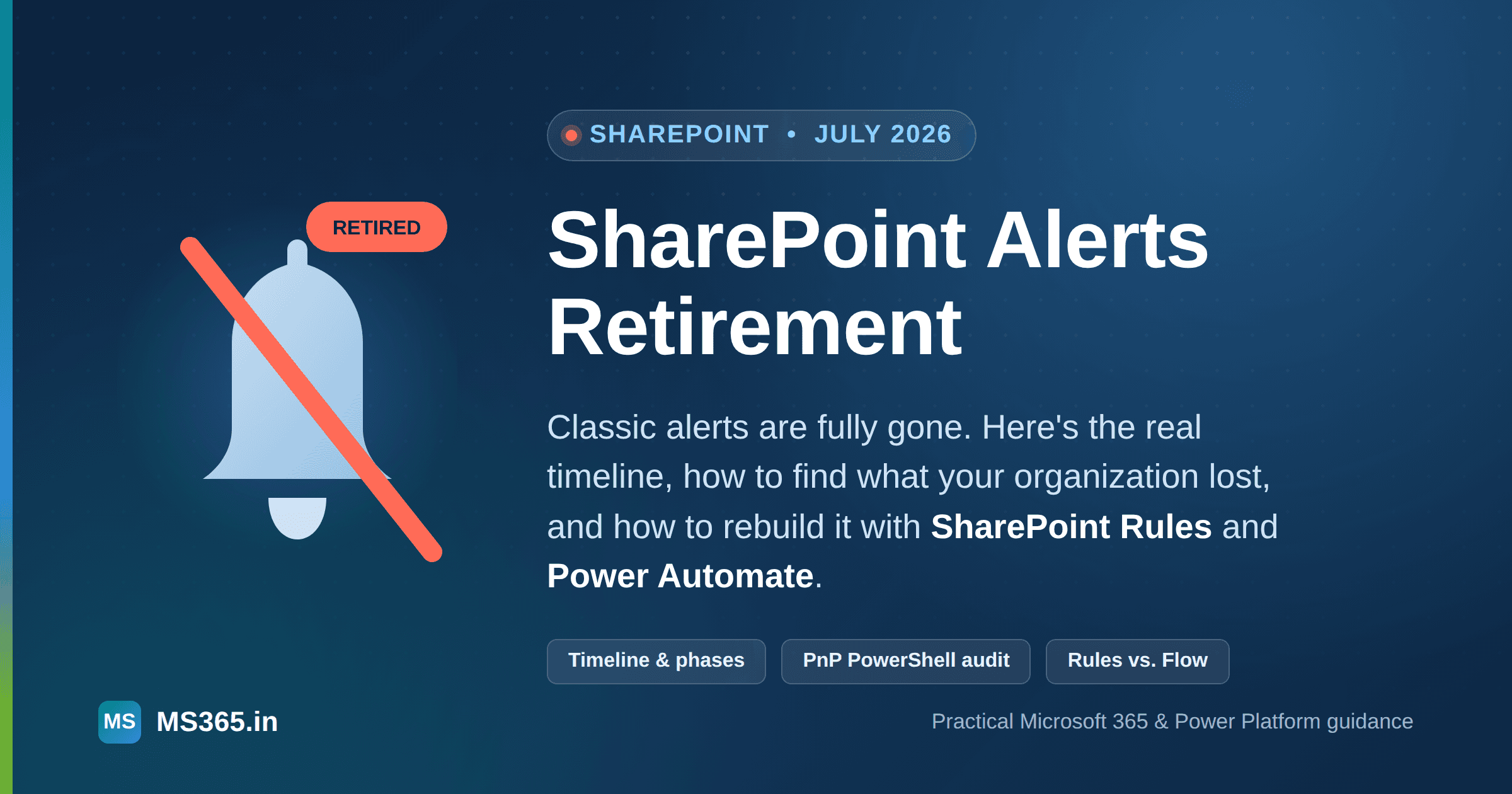
SharePoint Alerts stopped working in July 2026. Here is the timeline that got us here, how to find the notifications your organisation quietly depended on, and how to choose between SharePoint Rules and Power Automate to replace them.
If people in your organization have quietly stopped getting emailed when a document changes or a list item gets approved, and nobody can quite say when it stopped, you're looking at the aftermath of SharePoint Alerts retirement. As of this writing, the feature is fully gone — Microsoft finished switching it off in July 2026 — and there is no setting, no PowerShell flag, and no support ticket that brings it back.
Alerts were the "Alert me" option that had sat under a list or library's ellipsis menu since SharePoint 2003. Click it, pick a frequency, and SharePoint would email you when something changed. It was never sophisticated, but it was ubiquitous — enough tenants had thousands of them scattered across sites, most created by end users with no record anywhere of what they were for.
This piece covers what actually happened and when, how to find the alerts your organization lost before you rebuild anything, and how SharePoint Rules and Power Automate compare as replacements — including the parts of alert behavior that neither one reproduces cleanly.
The Actual Retirement Timeline
Microsoft published this in phases over about a year, and the phased rollout is why so many organizations noticed the problem well before the final cutoff.
Date | What happened |
|---|---|
July 2025 | New alert creation started being phased out for newly onboarding tenants — brand-new tenants never got the option at all |
October 2025 | Existing alerts began expiring 30 days after their first run. Users could self-service re-enable an expired alert through the Manage my alerts page for another 30-day window |
January 2026 | Alert creation was disabled for every remaining tenant, not just new ones |
July 2026 | SharePoint Alerts were removed outright. Existing alerts stopped running and can no longer be extended, renewed, or recreated |
The October 2025 expiration phase is the one that generated the most confused help-desk tickets, because alerts didn't disappear all at once — they died individually, 30 days after whoever created them last triggered a run, and most users had no idea a "Manage my alerts" page existed to renew them. By the time July 2026 arrived, a large share of an organization's alerts were often already gone through simple neglect rather than the retirement itself.
Why Microsoft Actually Retired It
Microsoft's official framing is that the change delivers "modern, optimized, secure" notification experiences as part of the platform's broader evolution — true, but not very specific. The concrete reasons are more useful if you're trying to explain this to a business owner who just wants their alert back:
Alerts ran on a timer job, not in response to the actual change. Depending on tenant load, "immediate" alerts could lag by minutes, and digest alerts ran on a fixed daily or weekly schedule you couldn't adjust.
There was no conditional logic. An alert fired on any change to a list or library, or on any change matching a basic filter — there was no way to say "only when Status changes to Approved" without also catching every unrelated edit.
Email was the only channel. No Teams post, no webhook, no approval step — just a mailbox.
They were invisible to administrators. There was no tenant-wide view of who had subscribed to what, which is exactly why Microsoft had to ship a dedicated assessment tool (below) rather than just querying a table.
Those limitations are also why Rules and Power Automate aren't simply "alerts with a new name" — they're built around visibility and conditional logic that alerts never had.
Finding What Your Organization Actually Lost
Before rebuilding anything, find out what existed. Rebuilding every old alert wholesale is how you end up maintaining fifty flows nobody uses; rebuilding nothing is how a business-critical approval notification quietly stays broken for six months.
Run the Microsoft 365 Assessment Tool
Microsoft and the PnP team publish a SharePoint Alerts assessment as part of the free Microsoft 365 Assessment Tool. It scans your tenant, inventories active and expired alerts, and produces a Power BI report broken down by site collection and list — the closest thing to an admin console this feature ever had. This is Microsoft's own recommended starting point in the official retirement guidance, and it's worth running even after the fact — expired and disabled alerts are still queryable, and knowing what used to exist tells you what to ask site owners about.
Query alerts directly with PnP PowerShell
If you want raw data rather than a dashboard, Get-PnPAlert still works against alerts that existed, including ones that have since expired:
Connect-PnPOnline -Url "https://contoso.sharepoint.com" -Interactive

$sites = Get-PnPTenantSite

$results = foreach ($site in $sites) {
    Connect-PnPOnline -Url $site.Url -Interactive
    $webs = Get-PnPSubWeb -Recurse -IncludeRootWeb

    foreach ($web in $webs) {
        Get-PnPAlert -AllUsers | ForEach-Object {
            [PSCustomObject]@{
                SiteUrl    = $site.Url
                WebUrl     = $web.Url
                List       = $_.List
                User       = $_.User
                ChangeType = $_.EventType
                Frequency  = $_.AlertFrequency
            }
        }
    }
}

$results | Export-Csv -Path ".\alert-inventory.csv" -NoTypeInformation
Note: Run this against every site collection you have access to, not just the obvious ones. The alerts most worth finding are usually on small departmental lists — approval trackers, incident logs, onboarding checklists — that nobody thinks to mention until the process built around them quietly stops.
Ask people, not just systems
A tenant-wide scan tells you what existed; it won't tell you what actually mattered. A short message to site owners — "did you rely on an email alert from this list, and did it stop?" — surfaces more useful signal than any report, because it catches the workaround that already replaced the missing alert: someone checking a list manually every morning is itself evidence that a notification is missing.
The Two Replacements: SharePoint Rules and Power Automate
SharePoint Rules
Rules is the direct, no-license-required successor built into the same Automate menu you'd have used for flows: open a list or library, select Automate > Rules > Create a rule.
It supports four trigger types:
A column changes
A column changes to a specific value
A new item is created
An item is deleted
Rules work identically on lists and document libraries, but there's a real practical gap on libraries: the useful trigger conditions depend on metadata columns, and a library with only the default system columns (Modified, Editor, and so on) gives you little to condition on beyond "any change." If you want a rule like "notify when Status changes to Approved" on a library, you need a genuine metadata column to check, the same as you would on a list.
The limits matter enough to plan around:
A hard cap of 15 rules per list or library. Busy operational lists hit this faster than people expect.
No email customization. The notification text is fixed; you can't add instructions or context the way you could write your own message.
No support for multi-line text columns as a trigger condition.
Within those limits, Rules is the right tool for a straightforward, personal, single-recipient notification a list owner can set up themselves without involving IT.
Power Automate
For anything with real conditional logic, multiple recipients, non-email delivery, or a process attached, Power Automate is the intended replacement, and it's where Microsoft is putting its actual investment. Built against the standard When an item is created or modified SharePoint trigger, a flow gives you:
Multi-condition branching (
Status equals ApprovedandAmount greater than 10000, for example)Delivery to a Teams channel, not just email
Approval steps, escalation, and multi-stage routing
A full, queryable run history — something alerts never had at all
The basic flows that replace classic alerts use standard connectors included with ordinary Microsoft 365 licensing; premium connectors and licensing only come into play once you're integrating systems outside Microsoft 365.
The trade-off is ownership. A flow runs under the identity of whoever created it, and it keeps running under that identity right up until the day that person's account is disabled — at which point it fails silently. Build flows against a dedicated service account or shared mailbox for anything that isn't purely personal, and re-authenticate the connections whenever ownership changes.
Tip: If a flow needs to update the very item that triggered it — setting a "Notified" flag, for instance — add a trigger condition (Advanced options > Trigger Conditions on the trigger, or an early Condition action) checking that the modifying account isn't the flow's own service account. Without it, the flow's own write re-triggers itself, and you get a loop that quietly burns through your Power Automate run quota.
Choosing between them
Requirement | Use |
|---|---|
Single-recipient notification, list owner can self-serve | SharePoint Rule |
Notification only when a specific condition is met | Power Automate |
Delivery to a Teams channel instead of email | Power Automate |
Approval or escalation routing | Power Automate |
Daily or weekly digest instead of per-item | Power Automate (scheduled flow) |
More than 15 distinct conditions on one list | Power Automate |
Daily and weekly digest alerts have no Rules equivalent at all — Rules only fires per event. For a digest, build a scheduled (recurrence-triggered) flow that queries items changed since its last run, rather than trying to force per-item rules into that shape.
Building a Basic Rule
Open the list or library and select Automate > Rules > Create a rule
Choose a trigger — for example, A column changes
Set the condition, such as Status is changed to Approved
Choose the recipient: a fixed person, or dynamically the value of a Person column on the item
Save
That's the entire flow — there's no separate "action" step to configure beyond the notification itself, which is exactly why it's the right tool only for the simple cases.
Building a Conditional Flow
For anything Rules can't express, a status-change notification with escalation is a representative pattern:
Trigger: When an item is created or modified
Add a Condition:
Statusis equal toEscalatedIn the Yes branch: post an adaptive card to a Teams channel, and separately email the item owner
In the No branch: no action, or a lighter-weight notification for ordinary changes
If the flow writes back to the item in either branch, add the trigger-condition loop guard described above before you turn it on
Run the flow against a handful of real test items — including one that shouldn't match the condition — before pointing it at a live business process. Flows fail loudly in the run history, which is a genuine improvement over alerts, but only if someone is actually watching that history.
Migrating Existing Rules Programmatically (Optional)
If you're recreating dozens of simple alerts as Rules and clicking through the UI each time isn't practical, there's no dedicated PnP PowerShell cmdlet for rule creation yet, but the underlying REST endpoint is reachable through Invoke-PnPSPRestMethod:
Invoke-PnPSPRestMethod -Url "/_api/web/lists/getByTitle('Incidents')/CreateRuleEx" `
  -Method Post `
  -Content $ruleBody `
  -ContentType "application/json"
The rule body maps to numeric trigger codes — AddObject (0), DeleteObject (1), and ModifyObject (3) — mirroring the trigger types available in the UI. This is worth using only for bulk, mechanical migrations of simple single-condition alerts; anything involving a digest, a folder-level alert, or genuinely conditional logic belongs in Power Automate instead, since Rules can't express it regardless of how you create the rule.
Common Mistakes
Rebuilding every alert without checking whether it was actually used. Most tenants have alerts nobody remembers creating. The assessment report and a short conversation with site owners are cheaper than maintaining automation for a process that ended two reorganizations ago.
Owning flows with personal accounts. This is the single most common cause of "it worked for months and then silently stopped."
Skipping the loop-prevention check on modify-triggered flows that write back to their own source item.
Sending one notification per item on high-volume lists where a digest would actually serve the audience better.
Assuming Rules can do what a flow can do. It's a genuinely useful tool within its limits, not a like-for-like replacement for conditional automation.
Troubleshooting Reference
Symptom | Likely cause | Fix |
|---|---|---|
Rule created, no email arrives | Person column on the item is empty | Populate the column, or point the rule at a fixed address |
Flow triggers repeatedly on one item | Flow writes back to the item that triggered it | Add a trigger condition excluding the flow's own service account |
Flow ran successfully, but the intended recipient got nothing | Message sent to the flow's owner instead of a dynamic recipient | Check the To field references the correct dynamic value, not a hardcoded owner address |
Flow stopped running after an employee departure | Connections were authenticated under that person's credentials | Reassign ownership and re-authenticate the connections |
Notifications feel slower than the old alerts | Normal polling behavior on standard triggers | Expected in most cases — classic alerts ran on a timer job too, so this is rarely an actual regression |
Frequently Asked Questions
Can SharePoint Alerts be turned back on? No. Microsoft has been explicit that there is no option to extend or re-enable classic alerts beyond July 2026.
Does this affect SharePoint Server (on-premises)? No — this retirement applies only to SharePoint Online / Microsoft 365. On-premises SharePoint Server follows its own, separate support lifecycle.
Do I need a premium license for the replacement? SharePoint Rules require no additional license. Basic Power Automate flows against SharePoint run on the standard capacity included with Microsoft 365; premium connectors and licensing only apply once you're reaching outside Microsoft 365.
Do document libraries need a different approach than lists? The same retirement and the same two replacements apply to both — Rules and Power Automate both operate on libraries exactly as they do on lists. The practical difference is that libraries often lack the metadata columns a useful conditional rule needs, so you may need to add one first.
Will Power Automate notifications be slower than alerts were? Generally no. Classic alerts were themselves subject to timer-job scheduling, so per-item flow notifications are typically comparable, and conditional flows often feel faster because they don't fire on irrelevant changes in the first place.
Where This Leaves You
Classic alerts were convenient precisely because they were invisible — no owner, no audit trail, no way for an administrator to know they existed until they stopped working. That convenience is also exactly what made the retirement so disruptive: nobody had an inventory to work from. If notifications in your tenant have already gone quiet, the right response isn't to rebuild everything that used to exist. Run the assessment, find out which notifications were actually load-bearing, rebuild those deliberately with Rules or Power Automate depending on how much logic they need, and let the rest go.
Sources consulted: