SharePoint Online Limits That Actually Cause Problems
Tenant storage, the 5,000 item view threshold and path length — what each limit does when you hit it, and how to design so you do not.
 Rajiv KumarApril 13, 20246 min read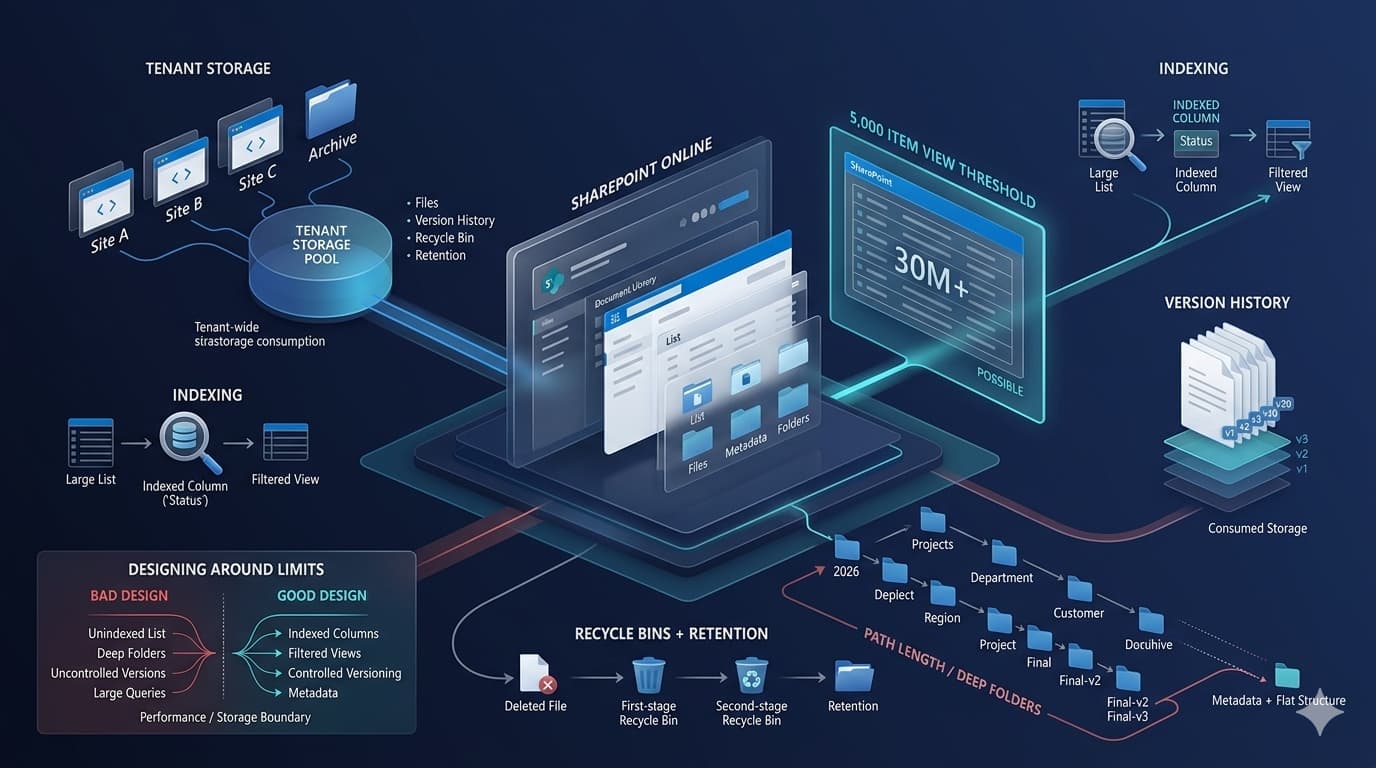
SharePoint Online's boundaries are well documented and widely misunderstood. Here is what the 5,000 item threshold really governs, why tenant storage fills up without new files, and the design decisions that keep you clear of both.
Almost every SharePoint Online problem that gets escalated as "the platform is slow" or "we've run out of space" turns out to be a boundary being hit rather than a fault. The platform has well-documented limits, and most of them behave the same way: everything is fine until a threshold is crossed, then a specific operation fails with a message that does not obviously explain itself.
This is a practical map of the limits that actually cause trouble, what each one does when you reach it, and how to design so you do not.
Tenant storage: how the pool is calculated
SharePoint Online storage is tenant-wide, not per site. The pool is a base allocation plus an amount per licensed user, and every site collection draws from it.
Two consequences follow, and both surprise people:
- Reducing licences reduces storage. If your allocation grew with headcount, shrinking headcount shrinks the pool. A tenant sitting near capacity can go over it during a downsizing, with no change in stored data.
- One site can consume the tenant's storage. By default site collections draw from the shared pool without individual caps, so a single team archiving video can affect everyone.
The second is worth acting on. SharePoint supports switching from automatic to manual site storage limits, which lets you cap individual sites:
Connect-SPOService -Url "https://contoso-admin.sharepoint.com"

# Switch the tenant to manual site storage management
Set-SPOTenant -SiteStorageManagement Manual

# Cap a site at 100 GB, warning at 90 GB
Set-SPOSite -Identity "https://contoso.sharepoint.com/sites/archive" `
  -StorageQuota 102400 -StorageQuotaWarningLevel 92160
Quotas are expressed in megabytes. Manual management means new sites need an explicit quota, so it is a governance decision rather than a switch to flip casually.
What counts toward storage
Files are the obvious part. The parts that are not obvious, and that routinely account for a surprising share of a tenant's consumption:
- Version history. A 50 MB file with 100 versions is not 50 MB. Versioning is per-library and often left at defaults nobody chose.
- Both recycle bins. Deleted content remains in the first-stage bin, then the second-stage bin, and continues to count throughout.
- Preservation holds. Content under a retention policy is preserved even when users delete it, and still occupies storage.
When a tenant is unexpectedly full, version history is the first place to look and usually the largest single recovery.
The 5,000 item list view threshold
This is the limit that generates the most confusion, because it is widely misunderstood in two directions at once.
It is not a limit on how many items a list can hold. A SharePoint list or library supports up to 30 million items. The threshold governs how many items a single operation may touch — a view, a query, a sort, a filter.
It cannot be raised in SharePoint Online. The 5,000 value is fixed by Microsoft and applies across the shared service. Guidance written for SharePoint Server, where the threshold was configurable, does not apply.
Why it exists
SharePoint lists are stored in SQL. An operation that has to evaluate more than 5,000 rows without a suitable index can escalate to a table-level lock, which in a shared environment would affect other tenants. The threshold is a guard against one query degrading the service for everyone.
Designing around it
The fix is almost always indexed columns plus filtered views, in that order.
- Index the columns you filter on. Library settings, then Indexed columns. An indexed column lets SharePoint find matching rows without scanning the list.
- Make every view return under 5,000 items. Filter on the indexed column. A view of "my open items" is both faster and more useful than a view of everything.
- Create the index before the list gets large. Indexing a list that is already over the threshold can itself fail. Add indexes early.
- Use folders where the data is naturally grouped. Folders scope the threshold per folder, which is unfashionable advice but effective for genuinely hierarchical content.
Connect-PnPOnline -Url "https://contoso.sharepoint.com/sites/projects" -Interactive

# Index a column before the list grows past the threshold
Set-PnPField -List "Project Tasks" -Identity "Status" -Values @{Indexed = $true}
When reading large lists programmatically, page the results rather than requesting everything:
# PageSize keeps each request under the threshold
$items = Get-PnPListItem -List "Project Tasks" -PageSize 2000
Write-Host "Retrieved $($items.Count) items"
Path length, file names and file size
Two limits here catch people during migrations rather than in daily use.
Full path length. The complete URL — site, library, folders, file name — is bounded. Deep folder hierarchies with descriptive names hit this before anyone expects. Migrations from file shares are where it surfaces, because file shares encourage exactly that structure.
Characters in names. SharePoint Online is far more permissive than it once was, but not unlimited. Leading and trailing whitespace, and certain reserved names inherited from Windows, still cause failures.
The practical mitigation for both is to flatten. Metadata columns replace folder levels, are filterable, and do not consume path length.
Common mistakes and better practice
- Treating the threshold as a storage limit. It is a query limit. Lists hold far more than 5,000 items; views must not return more than 5,000.
- Adding indexes reactively. Index while the list is small. Once it is over the threshold, adding an index can fail.
- Leaving version limits at default. On libraries holding large binaries, unbounded versioning is the most common cause of unexplained storage growth.
- Recreating file-share folder depth. Deep hierarchies consume path length and make content hard to find. Use metadata.
- Assuming deletion frees space immediately. Content sits in two recycle bins, and retention policies may preserve it regardless.
- Applying SharePoint Server guidance. The threshold was configurable on-premises. It is not in SharePoint Online.
Troubleshooting
| Symptom | Cause | Resolution |
|---|---|---|
| "The number of items in this list exceeds the list view threshold" | A view or query would return over 5,000 items | Index the filter column, then filter the view below the threshold |
| Indexing a column fails | The list is already past the threshold | Reduce the list temporarily, or create the index in a lower-volume window |
| Tenant storage full with no obvious cause | Version history, recycle bins or retained content | Review version limits, empty both recycle bins, check retention policies |
| Upload fails on some files during migration | Path length or an unsupported name | Flatten the hierarchy and shorten names |
| A view is slow but does not error | Under the threshold but unindexed | Index the filter and sort columns |
| Power Automate returns only part of a list | Connector paging defaults | Enable pagination on the action and set an item limit |
Frequently asked questions
Can the 5,000 item threshold be increased?
Not in SharePoint Online. It is fixed by Microsoft to protect performance in a shared service. Advice describing how to raise it applies to SharePoint Server.
How many items can a list actually hold?
Up to 30 million. The threshold constrains what one operation can return, not what the list can store.
Does version history really count toward storage?
Yes, and it is frequently the largest recoverable component. Every retained version occupies space.
Do deleted files still consume storage?
Yes, while they remain in either recycle bin. Content held by a retention policy is preserved beyond that.
Are folders bad practice?
Not inherently. Metadata is more flexible and does not consume path length, but folders scope the view threshold per folder and suit genuinely hierarchical content. The problem is depth, not existence.
Designing with the limits rather than against them
Almost every limit above rewards the same design decisions: index the columns you filter on, keep views scoped, prefer metadata to folder depth, and set version limits deliberately. Sites built that way tend never to encounter these boundaries at all.
The ones that do are usually sites that grew organically, where nobody chose the structure and nobody owns it. If you are auditing an existing tenant, start with the largest libraries and their version settings — that is where the recoverable space and the slow views both tend to be.