SharePoint Organization Assets Libraries and Their Permission Catch
Registering a library tenant-wide does not grant anyone access to it. That one behaviour shapes how you have to structure brand assets.
 Rajiv KumarMarch 19, 20264 min read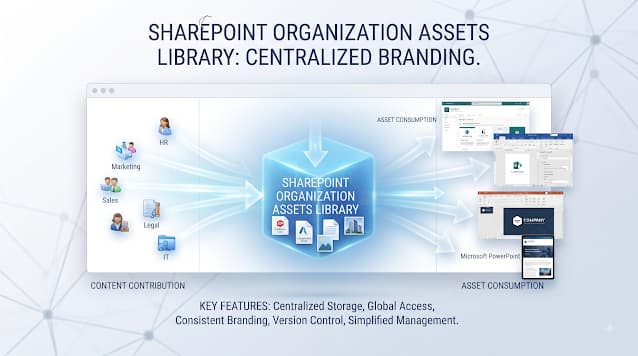
Organization assets libraries put approved images and templates directly in the picker. The catch is that registration grants no permissions at all — so the library has to be readable organisation-wide, and that decides your whole structure.
Organization Assets Libraries let you nominate specific SharePoint libraries as tenant-wide sources for images and Office templates. Once configured, those libraries appear directly in the picker when someone inserts an image in SharePoint or opens a new document — under an "Organization" heading, alongside their own files.
It is a genuinely useful feature for keeping approved brand assets in front of people, and it has one behaviour that surprises nearly everyone who deploys it.
What it does
An organization assets library is an ordinary document library, flagged at tenant level as a source of one of two asset types:
- ImageDocumentLibrary — appears in the SharePoint image picker
- OfficeTemplateLibrary — appears under Office templates
The flag does not change the library. It adds a pointer so client experiences know to offer it.
The permission behaviour to plan for
Designating a library as an organization asset does not grant anyone access to it.
This trips people up because the feature is described as tenant-wide, which sounds like it implies tenant-wide access. It does not. If a user does not have read permission on the library, one of two things happens: they do not see it, or they see it and cannot use the contents.
The consequence is that the library must be readable by everyone expected to use it. In practice that means granting read access to "Everyone except external users" on the library, and accepting what that implies:
- Everything in the library is readable by the whole organisation
- It cannot hold assets restricted to a subset of staff
- Content restrictions must be handled by which library, not by permissions within one
Where different groups need different assets, the answer is separate libraries with separate permissions, each registered individually.
Configuring it
Configuration is PowerShell only — there is no admin-centre interface for this.
Connect-SPOService -Url "https://contoso-admin.sharepoint.com"

# Register an image library
Add-SPOOrgAssetsLibrary `
  -LibraryUrl "https://contoso.sharepoint.com/sites/brand/BrandImages" `
  -ThumbnailUrl "https://contoso.sharepoint.com/sites/brand/SiteAssets/thumb.png" `
  -OrgAssetType ImageDocumentLibrary

# Confirm what is registered
Get-SPOOrgAssetsLibrary
Points worth knowing before you run it:
- The URL must be the library, not the site.
- The thumbnail is optional but worth supplying; without one the entry is visually anonymous in the picker.
- Registration is not instant. Allow time for it to appear in client experiences.
- Removing a library with
Remove-SPOOrgAssetsLibraryremoves the pointer, not the library or its contents.
A site worth creating for it
Rather than flagging an existing team's library, create a dedicated site for organisational assets. It keeps ownership clear, avoids a team accidentally reorganising files the whole company depends on, and makes the read-for-everyone permission an intentional property of that site rather than a surprise on a working library.
Common mistakes and better practice
- Expecting it to grant access. It does not. Permissions are separate and must be set explicitly.
- Registering a working team library. It becomes readable organisation-wide, and the team keeps reorganising it. Use a dedicated site.
- Passing a site URL instead of a library URL. The cmdlet needs the library.
- Expecting instant appearance. Propagation takes time; check again before troubleshooting.
- Putting restricted assets in a shared library. Permissions apply to the whole library. Separate the content.
- Skipping the thumbnail. Small detail, meaningful difference in whether people find and use it.
- No owner. An asset library nobody maintains fills with outdated logos, which is worse than not having one.
Troubleshooting
| Symptom | Cause | Resolution |
|---|---|---|
| Library does not appear in the picker | Not yet propagated, or user lacks read access | Confirm with Get-SPOOrgAssetsLibrary; verify permissions; allow time |
| Visible to administrators only | Read access not granted broadly | Grant read to Everyone except external users |
| Cmdlet rejects the URL | Site URL supplied instead of library URL | Use the full library path |
| Images appear but will not insert | Read permission on the library but not the items | Check for broken inheritance on individual files |
| Templates absent from Office | Registered with the wrong asset type | Re-register as OfficeTemplateLibrary |
| Removed but still showing | Client-side caching | Allow propagation time and clear the client cache |
Frequently asked questions
Does registering a library grant access to it?
No. Permissions are entirely separate and must be granted explicitly.
Can several libraries be registered?
Yes. Multiple libraries can be registered, which is how you serve different asset sets to different audiences — each with its own permissions.
Is there an admin-centre interface?
No. Configuration is through the SharePoint Online Management Shell.
What happens on removal?
Only the tenant-level registration is removed. The library and its contents are untouched.
Can external users access these libraries?
Only if permissions allow it. The common configuration grants read to "Everyone except external users", which excludes guests by design.
Worth doing, with the permissions decided first
Organization assets libraries solve a real problem: people using whatever logo they can find rather than the approved one. Putting the right asset in the picker is far more effective than telling people where the brand folder is.
The thing to settle before configuring anything is the permission model. Because access is organisation-wide read, decide up front which assets belong in a universally readable library and which need their own — that decision is much cheaper to make now than to unpick later.