Power Apps Delegation Warning: Every Cause, Every Fix, Explained Properly
Why a non-delegable formula returns confident, wrong answers once your data grows — and the patterns that fix it.
 Rajiv KumarJanuary 13, 202512 min read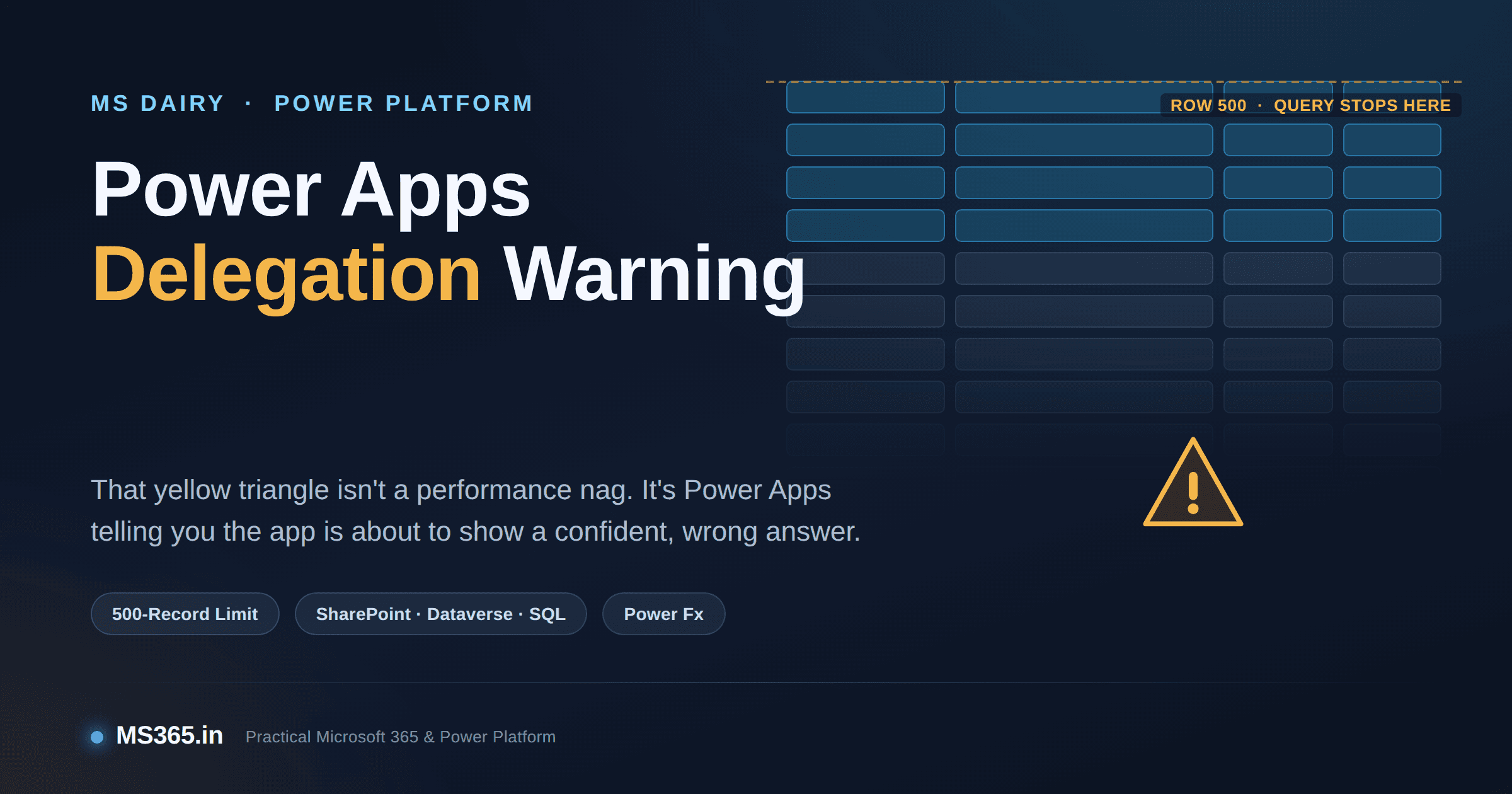
The delegation warning looks like performance advice. It is not. A non-delegable filter evaluates the first 500 records and reports on those, so searches miss records that exist and totals are quietly wrong.
If you have built more than two or three canvas apps against SharePoint, Dataverse, or SQL Server, you have seen it: a thin blue squiggle under part of a formula, and a small yellow triangle sitting quietly on a control. Power Apps calls it a delegation warning. Most makers treat it as a suggestion. That is the single most expensive misunderstanding in the platform.
A delegation warning is not Power Apps being fussy about style. It is Power Apps telling you, as plainly as its UI allows, that the app is about to lie to its users — not by crashing, not by throwing a red error banner, but by quietly returning a partial answer and presenting it as a complete one. A gallery that should show 40 matching orders shows 12. A "Total pending amount" tile that should read a six-figure number reads a four-figure one. Nothing looks broken. Everything looks broken, later, when someone in finance asks why the numbers don't reconcile.
This article goes through delegation properly: what it actually is, why the warning is worded so casually, exactly which functions and data sources you can trust, the full non-delegable function list, the data row limit setting and its real trade-offs, and the rewrite patterns that fix most warnings in practice. If you only read one section, read the one on why this is a correctness issue and not a performance issue — everything else follows from that.
What Delegation Actually Means
Every canvas app formula that touches a data source — Filter, Sort, Search, LookUp, CountRows, and a handful of others — has to run somewhere. Power Apps has exactly two options:
Delegate it. Translate the Power Fx expression into a query the data source itself understands (an OData query against SharePoint or Dataverse, a T-SQL query against SQL Server) and let the server do the filtering, sorting, or counting across the entire table. Only the matching rows travel back to the device.
Evaluate it locally. Pull a batch of raw records down to the app and run the formula against that batch in memory, on the client.
Delegation is always the better outcome, and not by a small margin. A delegated Filter against a Dataverse table with three million rows and a delegated Filter against a Dataverse table with thirty rows cost the app roughly the same: one efficient query, a small result set, fast rendering. A non-delegated equivalent has to physically transfer records to evaluate the condition client-side, and Power Apps caps how many it will transfer.
That cap is the data row limit — 500 records by default, adjustable up to 2,000 in the app's settings. When a formula can't be delegated, Power Apps fetches up to that many rows (usually in whatever default order the source returns them, which is often insertion order, not anything meaningful) and applies the rest of the formula in memory. Anything past row 500 — or row 2,000, if you've raised the limit — simply never gets evaluated. It isn't skipped with a warning at runtime. It isn't flagged to the end user. It is just absent from the result, as if it didn't exist.
Why This Is a Correctness Problem, Not a Performance One
It's worth being blunt about this, because the "it's just slower" framing is how delegation issues survive into production undetected.
A non-delegable Filter doesn't fail loudly. It returns a Table — a real, well-formed, correctly-typed table — that Power Apps renders exactly like any other result. The gallery populates. The count updates. The dropdown fills in. There's no exception, no null reference, no red screen. The only version of "wrong" here is a data table that is missing rows the user has every reason to believe are in it.
That's the trap:
A confident, plausible, wrong answer is far more dangerous than an obvious error, because nobody double-checks it.
Consider a live example: a receivables app filters an Invoices table for Status = "Overdue" and sums the outstanding amount for a regional dashboard. If the underlying filter or the Sum step isn't delegable and the table has 8,000 rows, the app will confidently display a total computed from an arbitrary subset of up to 500 or 2,000 of those rows — not the 8,000 that exist. The number on screen looks completely normal. It's also completely wrong, and it will stay wrong until someone manually reconciles it against the source system, by which point a decision may already have been made on the bad number.
This is why delegation deserves the same discipline as data validation or authorization logic — it isn't a nice-to-have for "apps at scale," it's baseline correctness for any app whose data can plausibly grow past a few hundred rows, which in practice is most business apps within a year of going live.
Anatomy of the Warning: What Power Apps Is Actually Telling You
When you write a formula that can't be delegated, Power Apps Studio shows two things at design time, and — this matters — nothing at all at runtime:
A blue squiggly underline beneath the specific part of the formula that broke delegation.
A yellow warning triangle on the control or in the formula bar, with a tooltip along the lines of "This formula might not work correctly on large data sets, delegation is not supported for the highlighted part."
Two details catch people out repeatedly:
Only the first non-delegable element is underlined. If your formula has three problems, fixing the first one just reveals the second. Don't treat "warning gone" as proof the formula is clean until you've re-checked the whole expression.
The warning is a design-time-only signal. It appears in Studio for the maker. It does not appear for the person using the published app. There is no in-app banner telling an end user "this list may be incomplete." If you don't catch it while building, nobody catches it — the business does, eventually, by noticing the numbers don't add up.
The warning only fires against delegable data sources at all. Collections, imported Excel tables, and context-variable tables aren't part of the delegation system in the first place — Power Fx evaluates the full language against them locally, by design, with no warning because there's no delegation to fail. That's fine for genuinely small local data; it's a separate problem if you've built an app around a giant collection expecting it to behave like a live data source.
Delegation Support by Data Source
Delegation depends on both the function you use and what the underlying connector is able to translate into its native query language. The same formula can be perfectly delegable against Dataverse and completely non-delegable against SharePoint. This is the part of delegation that catches teams who assume "canvas apps" is one consistent runtime rather than a thin layer over very different backends.
Capability | Microsoft Dataverse | SQL Server | SharePoint Online | Excel / Collections |
|---|---|---|---|---|
Basic comparisons ( | Full | Full | Partial — column-type dependent | Not delegable (local only) |
| Yes | Yes | Yes | N/A |
| Yes | Yes | No | N/A |
| Limited | Limited | No | N/A |
| Yes (base table) | Yes | Limited | N/A |
| Yes | Yes | Limited/inconsistent | N/A |
| Yes | Yes | No | N/A |
| Yes | Yes | No (use | N/A |
Lookup / relationship depth | Up to ~2 levels | Full joins via view | Very limited on lookup/person columns | N/A |
Sorting on complex columns (Choice, Person, Lookup) | Yes | Yes | No | N/A |
The pattern is consistent across every source: Dataverse and SQL Server delegate the richest set of operations; SharePoint delegates the least. If your app is built on SharePoint lists — still one of the most common canvas app backends in Microsoft 365 shops — you should assume delegation is the exception you have to design for, not a default you can rely on.
SharePoint Delegation, in Detail
Because SharePoint is where most delegation warnings actually originate, it earns its own breakdown.
What reliably delegates against SharePoint:
Filter()andLookUp()themselves, when every condition inside them is delegableStartsWith()on text columns=comparisons on most simple column typesAnd/Orcombinations of delegable conditionsSort()/SortByColumns()on simple (non-complex) columns
What does not delegate against SharePoint, ever:
Contains()— there is no server-side substring search in the SharePoint connector's delegable setSearch()— same limitation, different functionIsBlank()— SharePoint can't translate this; rewrite asColumn = Blank()Not— restructure the logic instead of negating itAny filter or sort touching a Choice, Person/Group, Lookup, or Multi-line Text column beyond basic equality
Comparisons other than
=on the internalIDcolumn (<,>,<=,>=,<>are not delegable onID)Arithmetic or text transformation inside the filter condition (
Text(),Mid(),Len(),Left(),Right(),Upper(),Lower())
Note: SharePoint list performance and delegation both degrade further once a list crosses 5,000 items — the well-known list view threshold. Past that point, columns used in filters or sorts generally need to be indexed (up to 20 indexed columns per list) or the query fails outright rather than just falling back to local evaluation. If you're hitting delegation warnings on a list that's also near 5,000 items, solve the indexing problem and the delegation problem together — they compound.
The Non-Delegable Function List
Some functions are non-delegable everywhere, regardless of data source, because there is no server-side equivalent for what they do. These always evaluate against whatever is currently loaded locally (i.e., up to your data row limit), no matter how well-behaved your data source is otherwise:
First, FirstN, Last, LastN
Choices
Concat
GroupBy, Ungroup
Rand
Location (device GPS signal)
A second group is partially delegable — the arguments inside them can delegate, but the function's own output is still capped at the row limit because the shaping happens after retrieval:
AddColumns, DropColumns, ShowColumns, RenameColumns
For example:
AddColumns(
    Products,
    "SupplierName",
    LookUp(Suppliers, Suppliers.ID = Products.SupplierID, Name)
)
The LookUp inside can delegate fine on its own, but AddColumns is reshaping the Products table, and that reshaping only ever sees the first batch of Products rows that made it to the device. If Products has more rows than your data row limit, some of them simply never reach the AddColumns step at all.
A third, more insidious group causes warnings inconsistently depending on where they sit in a formula — CountIf, RemoveIf, and UpdateIf behave differently depending on the data source and the complexity of their condition, so treat a missing warning on these as "not proven delegable," not as "confirmed fine."
Two Real Rewrites
Substring search on SharePoint — broken:
Filter(
    Employees,
    "smith" in Lower(FullName)
)
This evaluates Lower() per row and does a substring test, neither of which SharePoint can translate. On a list with 6,000 employees, you'll silently search only the first 500 (or however many your row limit allows).
Fixed — delegable:
Filter(
    Employees,
    StartsWith(FullName, TextInput_Search.Text)
)
You lose true substring matching, which is a genuine functional trade-off, not a free win — be explicit with your users that search matches from the start of the name. If you need real substring search at scale against SharePoint, the honest answer is to move it off SharePoint: index the list into Dataverse, push it through a search-oriented backend, or do the substring filtering in a Power Automate flow that pages through the full list server-side and returns matches, rather than pretending Power Fx can do it client-side correctly.
A blank check — broken on SharePoint:
Filter(Tickets, IsBlank(AssignedTo))
Fixed:
Filter(Tickets, AssignedTo = Blank())
Functionally identical outcome, fully delegable rewrite — this one costs nothing.
Should You Just Raise the Data Row Limit?
Raising the data row limit (Settings → General → Data row limit, up to 2,000) is the fix everyone reaches for first because it requires zero formula changes. It is also, in most cases, the wrong fix, and it's worth being explicit about why:
It doesn't remove the ceiling, it just moves it. A table with 3,000 rows and a non-delegable filter will still silently drop 1,000 of them at the 2,000 limit. You've bought time, not correctness.
It makes every non-delegable operation slower, because the app now transfers up to four times as much raw data to evaluate locally, on every load and every re-evaluation of that formula.
It hides the warning's urgency. Once the visible symptom (an obviously truncated 500-row gallery) goes away at 2,000, teams tend to stop investigating, even though the underlying formula is exactly as broken as before — just against a bigger, later-arriving dataset.
The legitimate use of the row limit setting is the opposite of raising it: set it to 1 during development. With the limit at 1, any non-delegable formula becomes obvious immediately, because it will only ever operate on a single record. This turns delegation testing from "hope you notice at some point" into "the app visibly breaks the moment you write a non-delegable formula," which is exactly the fast feedback loop you want while building.
How to Find Delegation Problems Before Your Users Do
Build with the data row limit set to 1. Every non-delegable formula becomes obvious in seconds, not months.
Never treat "no yellow triangle" as proof. Re-verify formulas after every edit, since Studio only flags the first non-delegable element per formula.
Test against production-scale data, not a 40-row sample list. Delegation issues are invisible below the row limit by definition — a formula that "works fine" in dev against 60 rows tells you nothing about its behavior at 6,000.
Treat SharePoint list sources as delegation-constrained by default. Design filters around
StartsWithand simple equality from the start rather than discovering the limitation mid-project.Document deliberate exceptions. If a non-delegable formula is genuinely acceptable — because the table is provably small and will stay that way — say so in a comment in the formula and in your solution documentation, so the next person doesn't "fix" it (or fail to notice it stopped being safe once the table grew).
Push heavy aggregation to the source system. Rollup/calculated columns in Dataverse, indexed views or computed columns in SQL Server, or a scheduled Power Automate flow that pre-aggregates SharePoint data into a small summary list, all beat trying to force
Sum/GroupByto behave over thousands of client-side rows.
Frequently Asked Questions
Can I just ignore a delegation warning if the app "works fine" today? Only if you can guarantee the underlying table will never exceed your data row limit — and that guarantee needs to be documented, not assumed. Tables that start small rarely stay small once an app is in daily use.
Does raising the row limit to 2,000 "fix" delegation? No. It raises the threshold at which incorrect results start appearing; it does not make the formula correct. Use it as a stopgap at most, never as the resolution.
Is Dataverse simply immune to delegation warnings? No — Dataverse delegates far more than SharePoint, but functions like GroupBy, Concat, and deep multi-level lookups are still non-delegable there too. Dataverse raises the ceiling; it doesn't remove it.
Why does the warning disappear after I fix one part of my formula, only for the app to still behave incorrectly? Because Studio underlines only the first non-delegable element it finds per formula. Fixing it can reveal a second issue further along the same expression that was previously masked. Re-check the whole formula, not just the part that was flagged.
Do delegation warnings ever appear for end users of the published app? No. The warning is a design-time signal in Studio only. Nothing in the runtime experience tells a user their result set might be incomplete, which is exactly why catching these during development matters.
Closing Thought
Delegation warnings are one of the few places in Power Apps where the tooling is doing you a genuine favor and most makers wave it off anyway, because the failure mode is invisible until the data grows. Treat every yellow triangle as a correctness bug report, not a style nitpick: identify which part of the formula broke delegation, check it against your actual data source's delegable function list, and rewrite it — or explicitly document why the exception is safe. The apps that hold up under real production data volume aren't the ones with the cleverest formulas; they're the ones where every formula that touches a growing table was written to be delegable from the start.
Sources consulted: Understand delegation in a canvas app – Microsoft Learn, Work with data source limits (delegation limits) – Microsoft Learn Training, SharePoint Delegation Cheat Sheet for Power Apps – Matthew Devaney.