Automating Daily Scrum Planner Notifications with Power Automate
Sending
 Rajiv KumarFebruary 20, 202612 min read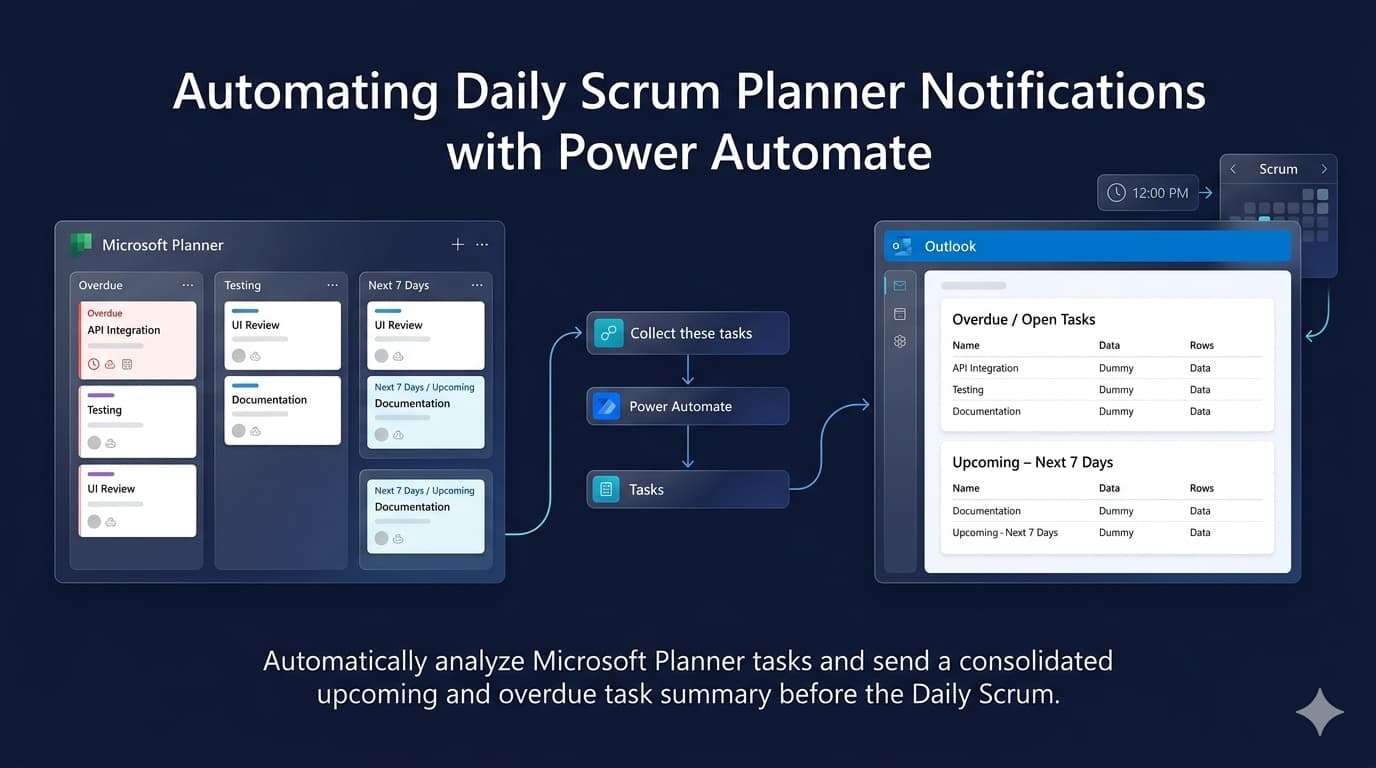
When a project has a large number of tasks, the challenge is not creating the tasks. The challenge is getting the right summary of those tasks before the meeting.
Daily Scrum meetings are one of the most important checkpoints in an agile project.
A typical Scrum meeting can involve multiple roles, including:
Project Managers
Team Leads
Developers
Designers
Solution Architects
Business Analysts
Testers
Other project stakeholders
When a project has a large number of tasks, the challenge is not creating the tasks. The challenge is getting the right summary of those tasks before the meeting.
In this scenario, Microsoft Planner is used by Managers and Team Leads to organize project work into different buckets, create tasks, assign those tasks to team members, and maintain due dates.
Microsoft 365 already sends task-level notifications to users when tasks are assigned to them. However, the Manager or Team Lead needs something different.
They need a consolidated view of the team's upcoming and overdue work before the Daily Scrum begins.
This is where Power Automate can turn a routine manual check into an automated daily notification.
The Business Requirement
The project team maintains its work in Microsoft Planner.
Managers and Team Leads create Planner buckets according to different areas of work and then add tasks inside those buckets.
Example
Microsoft Planner
│
├── Development
│   ├── Task A
│   ├── Task B
│   └── Task C
│
├── Testing
│   ├── Task D
│   └── Task E
│
├── Design
│   ├── Task F
│   └── Task G
│
└── Architecture
    ├── Task H
    └── Task I
Each task can then be assigned to the appropriate team member.
Once a task is assigned, Microsoft 365 can notify the assigned person through the normal Planner/Teams/Outlook notification mechanisms.
But there is another requirement.
The Manager or Team Lead needs to know:
What work is coming up in the next 7 days?
and
What work is already overdue or still open?
This information is useful immediately before the Daily Scrum because it gives the Manager or Team Lead a quick overview of the team's workload before the meeting starts.
The requirement was therefore to build an automation that:
Runs automatically on weekdays.
Executes before the Daily Scrum meeting.
Reads the current Planner buckets.
Reads the current Planner tasks.
Identifies overdue/open tasks.
Identifies tasks due within the next 7 days.
Builds consolidated HTML tables.
Sends the summary by email to the required Manager/Team Lead.
Automatically includes newly created buckets and tasks.
Requires no modification to the flow when Planner data changes.
The important point is that the flow is data-driven.
If a new bucket or task is created in Planner, the automation discovers it during its next run rather than requiring a developer to modify the flow.
Why Microsoft Planner Notifications Alone Were Not Enough
At first glance, Planner already has notifications.
If:
Task → Assigned to → Developerthe assigned developer can receive the appropriate Microsoft 365 notification.
But that notification answers a different question:
What task has been assigned to me?
The Scrum requirement is:
What is the overall upcoming and overdue workload for the team?
A Manager or Team Lead should not have to open Planner every morning, navigate through every bucket, inspect task due dates, and manually identify overdue work.
That is exactly the repetitive work this flow removes.
What the Automation Produces
The final result is an Outlook email sent before the Scrum meeting.
The email contains two separate sections.
1. Overdue / Open Planner Tasks
The first table identifies tasks that are overdue or still open.
Example
Bucket Name | Task Name | Overdue Date |
|---|---|---|
Development | Review API integration requirements | 14-Sep-2026 |
Testing | Validate regression test cases | 15-Sep-2026 |
Design | Finalize application wireframes | 16-Sep-2026 |
Documentation | Update technical documentation | 16-Sep-2026 |
2. Tasks Due Within the Next 7 Days
The second table contains upcoming tasks.
Example
Bucket Name | Task Name | Due Date |
|---|---|---|
Development | Complete authentication module | 18-Sep-2026 |
Testing | Prepare UAT test scenarios | 19-Sep-2026 |
Design | Finalize dashboard layout | 20-Sep-2026 |
Deployment | Prepare deployment checklist | 21-Sep-2026 |
Documentation | Complete user guide | 22-Sep-2026 |
Integration | Validate third-party API connectivity | 23-Sep-2026 |
The actual production email follows this structure, with separate tables for overdue/open tasks and tasks scheduled within the next seven days.
This gives the Manager or Team Lead a meeting-ready summary without having to manually inspect Planner.
Solution Architecture
The complete production flow contains one trigger and 30+ actions, conditions, loops, variables and data-transformation steps.
At a high level, the flow works like this:
                         ┌──────────────────────┐
                         │      Recurrence      │
                         │   Weekdays @ 9:15 AM │
                         └──────────┬───────────┘
                                    │
                                    ▼
                         ┌──────────────────────┐
                         │    List Buckets      │
                         │ Retrieve Planner     │
                         │ bucket information   │
                         └──────────┬───────────┘
                                    │
                                    ▼
                         ┌──────────────────────┐
                         │     List Tasks       │
                         │ Retrieve Planner     │
                         │ task information     │
                         └──────────┬───────────┘
                                    │
                                    ▼
                         ┌──────────────────────┐
                         │   Prepare HTML/CSS   │
                         │ Email table styling  │
                         └──────────┬───────────┘
                                    │
                                    ▼
                    ┌────────────────────────────────┐
                    │      Filter Planner Tasks      │
                    └───────────────┬────────────────┘
                                    │
                     ┌──────────────┴──────────────┐
                     │                             │
                     ▼                             ▼
          ┌─────────────────────┐       ┌─────────────────────┐
          │    Filter array     │       │   Filter array 2    │
          │                     │       │                     │
          │ Overdue / Open      │       │ Upcoming / Open     │
          │ Tasks               │       │ Next 7 Days         │
          └──────────┬──────────┘       └──────────┬──────────┘
                     │                             │
                     ▼                             ▼
          ┌─────────────────────┐       ┌─────────────────────┐
          │ Apply to each       │       │ Apply to each       │
          │ FilteredTasks       │       │ FilteredTasks 2     │
          └──────────┬──────────┘       └──────────┬──────────┘
                     │                             │
                     ▼                             ▼
          ┌─────────────────────┐       ┌─────────────────────┐
          │ Lookup Bucket       │       │ Lookup Bucket 2     │
          │                     │       │                     │
          │ Match Bucket Id     │       │ Match Bucket Id     │
          │ with List Buckets   │       │ with List Buckets   │
          └──────────┬──────────┘       └──────────┬──────────┘
                     │                             │
                     ▼                             ▼
          ┌─────────────────────┐       ┌─────────────────────┐
          │ Compose Bucket Name │       │ Compose Bucket Name │
          └──────────┬──────────┘       └──────────┬──────────┘
                     │                             │
                     ▼                             ▼
          ┌─────────────────────┐       ┌─────────────────────┐
          │ Append to           │       │ Append to           │
          │ TasksArray          │       │ TasksArray2         │
          │                     │       │                     │
          │ Overdue Tasks       │       │ Upcoming Tasks      │
          └──────────┬──────────┘       └──────────┬──────────┘
                     │                             │
                     └──────────────┬──────────────┘
                                    │
                                    ▼
                     ┌────────────────────────────┐
                     │     Create HTML Tables     │
                     │                            │
                     │  TasksArray  → Overdue     │
                     │  TasksArray2 → Upcoming    │
                     └──────────────┬─────────────┘
                                    │
                                    ▼
                     ┌────────────────────────────┐
                     │       Task Counts          │
                     │                            │
                     │  Overdue Count             │
                     │  Upcoming Count            │
                     └──────────────┬─────────────┘
                                    │
                                    ▼
                     ┌────────────────────────────┐
                     │       Condition 3          │
                     │                            │
                     │ Overdue > 0 OR Upcoming>0  │
                     └──────────────┬─────────────┘
                                    │
                              ┌─────┴─────┐
                              │           │
                            No│           │ Yes
                              ▼           ▼
                     ┌─────────────┐   ┌────────────────────┐
                     │ No relevant │   │    Both Exist      │
                     │ tasks       │   │                    │
                     └─────────────┘   │ Overdue > 0 AND    │
                                       │ Upcoming > 0       │
                                       └─────────┬──────────┘
                                                 │
                                      ┌──────────┴──────────┐
                                      │                     │
                                    Yes                     No
                                      │                     │
                                      ▼                     ▼
                           ┌──────────────────┐    ┌───────────────────┐
                           │ Send Email       │    │ Only Overdue      │
                           │                  │    │ Check             │
                           │ Overdue +        │    └─────────┬─────────┘
                           │ Upcoming         │              │
                           └────────┬─────────┘       ┌──────┴──────┐
                                    │               Yes            No
                                    │                │              │
                                    │                ▼              ▼
                                    │       ┌──────────────┐ ┌──────────────┐
                                    │       │ Send Email   │ │ Send Email   │
                                    │       │ Overdue Only │ │ Upcoming Only│
                                    │       └──────┬───────┘ └──────┬───────┘
                                    │              │                │
                                    └──────────────┴────────────────┘
                                                   │
                                                   ▼
                                            ┌────────────┐
                                            │ Terminate  │
                                            └────────────┘
The full production screenshot shows the nested Apply to each, Filter array, Compose, Append to array variable, Create HTML table, Condition, and Send an email (V2) actions used to implement this logic.
Step 1: Create the Recurrence Trigger
This trigger is used to run the flow automatically on a scheduled basis. In this flow, the requirement is to send the Planner task summary on outlook before the Daily Scrum meeting, so the flow is configured to run at 9:15 AM from Monday to Friday.
Step 2: List Planner Buckets
In List Planner Buckets, you need to select the Group Id and Plan Id. The Group Id will be available only if you have access to the Planner plan. So, first check whether you have access to the required Planner. If you don't have access, request the required access. Once you have access, the Group Id will be available.
If the selected Group Id has multiple Plan Ids, make sure to select and confirm the Plan Id that is related to the required Planner.
Note
We are using List buckets because later in the flow we need to identify the Bucket Name for each Planner task. Planner tasks contain a Bucket Id, so we retrieve the bucket information here to map the Bucket Id with its corresponding Bucket Name.
Step 3: List Planner Tasks
In List tasks, you need to select the same Group Id and Plan Id that you selected in the List buckets action.
Note
The reason for using the same Group Id and Plan Id is that both actions must work with the same Planner. List buckets retrieves the buckets from the selected Planner, while List tasks retrieves all the tasks from that Planner.
Example
List buckets
    ↓
Bucket Id: 12345
Bucket Name: Development

List tasks
    ↓
Task: Complete Authentication Module
Bucket Id: 12345
Due Date: 18-Sep-2026
Step 4: Compose CSS
This is where the flow prepares the styling that will eventually be applied to the generated HTML tables. The purpose is not business logic. It is presentation. The email should be readable in Outlook rather than looking like a raw Power Automate data dump.
Compose css
<style>
table {
  border: 1px solid #1C6EA4;
  background-color: #EEEEEE;
  width: 100%;
  text-align: left;
  border-collapse: collapse;
}
table td, table th {
  border: 1px solid #AAAAAA;
  padding: 3px 2px;
}
table tbody td {
  font-size: 13px;
}
table thead {
  background: #686E9F;
  border-bottom: 2px solid #444444;
  text-align: left;
}
table thead th {
  font-size: 15px;
  font-weight: bold;
  color: #FFFFFF;
  border-left: 2px solid #D0E4F5;
  text-align: left;
}
table thead th:first-child {
  border-left: none;
}
</style>
Step 5: Filter Overdue and Open Planner Tasks
In the From field, select the value output from the List tasks action. This provides all the Planner tasks that were retrieved from the selected Planner.
The filter checks three conditions:
The task must have a Due Date.
The Due Date must be less than the current date and time.
The task must not be 100% completed.
From
output('List_task')?['body/value']Value:
@and(
  not(empty(item()?['dueDateTime'])),
  less(item()?['dueDateTime'], utcNow()),
  less(item()?['percentComplete'], 100)
)
The production flow contains multiple filter operations because upcoming and overdue tasks require separate processing.
Step 6: Filter Planner Tasks Due Within the Next 7 Days
Here, we want to identify the Planner tasks that are scheduled to expire within the next 7 days.
This filter checks four conditions:
The task must have a Due Date.
The Due Date must be greater than or equal to the current date and time.
The Due Date must be less than or equal to 7 days from the current date and time.
The task must not be 100% completed.
From:
output('List_task')?['body/value']Value:
@and(
  not(empty(item()?['dueDateTime'])),
  greaterOrEquals(item()?['dueDateTime'], utcNow()),
  lessOrEquals(item()?['dueDateTime'], addDays(utcNow(), 7)),
  less(item()?['percentComplete'], 100)
)
Step 7: Process Upcoming Planner Tasks
Apply to each to process the filtered upcoming tasks individually.
Inside Apply to each, add a Condition to verify that the current task has a Due Date and that its Due Date falls within the next 7 days.
*Select an output from previous steps:
Output('List_buckets')?['body/value']Condition:
1) empty(item()?['dueDateTime']) is equal to false
2) item('apply_to_each')?['dueDateTime'] Is less than or equal to addDays(utcNow(), 7)
Note: This step was used for testing purposes during flow development. It was not used in the final processing logic of the flow.
Step 8: Initialize the TasksArray Variable
After the initial task filtering and testing steps, we initialize an Array variable named
TasksArray.
This variable is used to temporarily store the processed overdue/open task records before creating the final HTML table.
Step 9: Initialize the TasksArray2 Variable
Similarly, we initialize another Array variable named
TasksArray2.
This variable is used to temporarily store the processed upcoming task records before creating the HTML table for tasks due within the next 7 days.
Step 10: Process and Store Overdue Planner Tasks
Use Apply to each FilteredTasks to process each filtered overdue/open task individually.
Inside the loop:
Filter array (Lookup bucket): Match the task's Bucket Id with the Id from the List buckets output to find the corresponding bucket.
Compose BucketName: Retrieve the bucket name using:
coalesce(first(body('Filter_array_(Lookup_bucket)'))?['name'], 'Unknown Bucket')Append to array variable: Add the processed task details to
TasksArray, including:Bucket Name
Task Name
Overdue Date
The task date is formatted using:
formatDateTime(item()?['dueDateTime'], 'dd-MMM-yyyy')This TasksArray will be used later to create the Overdue / Open Tasks table in the email.
Step 11: Process and Store Upcoming Planner Tasks
Use Apply to each FilteredTasks 2 to process each task from the upcoming-task collection individually.
Inside the loop:
Filter array (Lookup bucket) 2: Use the value output from List buckets and match its value Id with the current task's Bucket Id to retrieve the corresponding bucket.
Compose BucketName 2: Get the matching bucket name using:
coalesce(first(body('Filter_array_(Lookup_bucket)_2'))?['name'], 'Unknown Bucket')Append to array variable: Add the processed task details to
TasksArray2, including:Bucket Name
Task Name
Due Date
The Due Date is formatted using:
formatDateTime(item()?['dueDateTime'], 'dd-MMM-yyyy')The TasksArray2 data will be used later to create the Tasks Due Within the Next 7 Days table in the email.
Note
The bucket lookup is repeated here because the upcoming tasks are processed separately from the overdue/open tasks. Both lookups use the List buckets output, but they populate different arrays: TasksArray for overdue tasks and TasksArray2 for upcoming tasks.
Step 12: Create HTML Tables and Count Tasks
After storing the overdue and upcoming tasks in separate arrays, we create HTML tables and count the tasks in each category.
Create HTML table: Select
TasksArrayin the From field. This creates the table for Overdue / Open Tasks.Create HTML table 2: Select
TasksArray2in the From field. This creates the table for Tasks Due Within the Next 7 Days.Compose: Overdue Count: Use:
length(variables('TasksArray'))This returns the number of overdue/open tasks.
Compose: Upcoming Count: Use:
length(variables('TasksArray2'))This returns the number of upcoming tasks.
These actions prepare the two separate HTML tables and their counts, which are used later when building the final email notification.
Step 13: Check Task Counts
After creating the HTML tables and calculating the task counts, add a Condition 3 to check whether there is at least one task in either category.
Use OR and compare the outputs of Overdue Count and Upcoming Count with 0:
Overdue Count > 0
OR
Upcoming Count > 0
This condition checks whether there is any overdue/open task or upcoming task that needs to be included in the notification.
If No
If both counts are 0, add a Compose 1 action with:
There is No taskThis handles the scenario where there are no relevant Planner tasks to include in the email.
Step 13: Condition 3 "If Yes"– Send Planner Task Summary
If Condition 3 is Yes, the flow checks whether both task categories contain tasks.
Condition: Both Exist
Add another Condition named Both Exist and use AND:
Overdue Count > 0
AND
Upcoming Count > 0
This checks whether both overdue/open tasks and upcoming tasks are available.
If Yes: Send an email (V2)
If both counts are greater than 0, add Send an email (V2).
Configure the email with the required recipient and the subject:
Action Required: Review Upcoming & Overdue Planner TasksThe email body contains both HTML tables:
Hi Rajiv

Please review the Planner tasks that are overdue or still open:-

@{outputs('Compose_Table_CSS')}
@{body('Create_HTML_table')}

Please review the Planner tasks scheduled to expire within the next 7 days:

@{outputs('Compose_Table_CSS')}
@{body('Create_HTML_table_2')}

Regards,
MS Planner
Here:
Create_HTML_tablecontains the Overdue / Open Tasks.Create_HTML_table_2contains the Upcoming Tasks for the next 7 days.Compose_Table_CSSapplies the HTML/CSS formatting used for the tables.
This branch sends a single consolidated email containing both task sections when both types of tasks are available.
Step 13: Condition 3 – If No → Only Overdue Check → If Yes / If No – Send Planner Task Summary
If Condition 3 is Yes, the flow checks whether both Overdue and Upcoming tasks exist.
Both Exist
The Both Exist condition uses AND:
Overdue Count > 0
AND
Upcoming Count > 0
If Yes – Send Both Task Sections
If both counts are greater than 0, the flow uses Send an email (V2) 1 to send a single email containing both:
Overdue / Open Planner Tasks
Tasks Due Within the Next 7 Days
Subject:
Action Required: Review Upcoming & Overdue Planner TasksThe email body uses the HTML tables created earlier for both task categories.
If No – Check Only Overdue Tasks
If both task categories do not exist, the flow moves to Only Overdue Check.
This condition checks:
Overdue Count > 0If Yes – Send Overdue Email
If overdue tasks are available, the flow uses Send an email (V2) 1 to send only the overdue/open task information.
Subject:
Action Required: Review Overdue Planner TasksThe email body contains the Overdue / Open Tasks section and its HTML table.
If No – Send Upcoming Email
If there are no overdue tasks, the flow uses Send an email (V2) 3 to send the upcoming-task notification.
Subject:
Action Required: Review Upcoming Planner TasksThe email body contains the Tasks Due Within the Next 7 Days section and its HTML table.
Final Logic
Condition 3
│
├── No → No relevant tasks
│
└── Yes
     │
     └── Both Exist
          │
          ├── Yes → Overdue + Upcoming Email
          │
          └── No → Only Overdue Check
                    │
                    ├── Yes → Overdue Email
                    │
                    └── No → Upcoming Email
This allows the flow to handle three possible notification scenarios:
Both types available → one consolidated email
Only overdue available → only overdue email
Only upcoming available → only upcoming email